# Builder Overview (Reference: https://docs.iqra.bot/build/script)
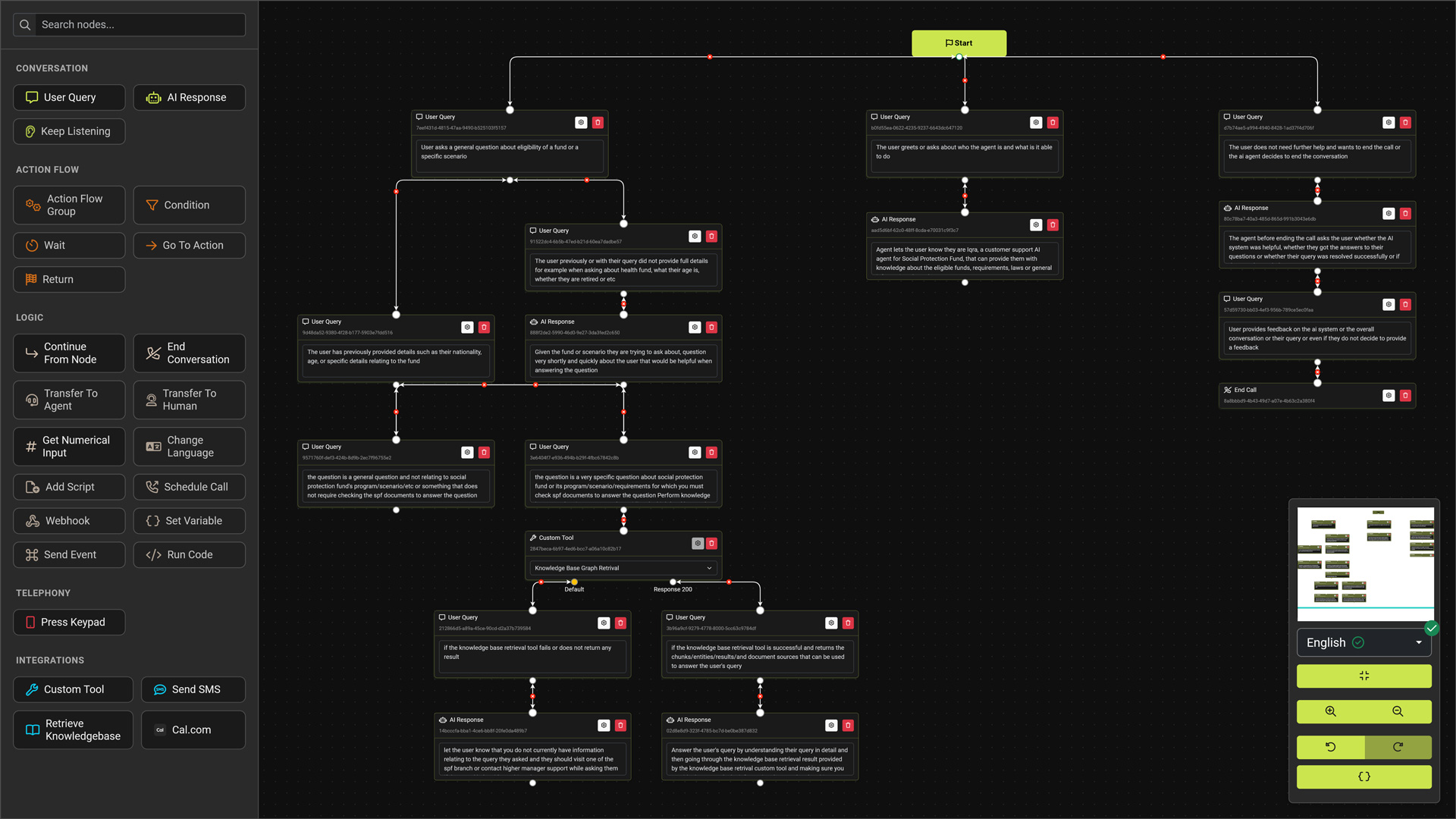 The **Script Builder** is more than a flowchart tool; it is a visual programming environment (IDE).
While the **Agent** defines the *personality*, the **Script** defines the *execution*. It acts as a state machine that orchestrates the conversation, manages variables, executes logic, and securely handles data.
The Interface [#the-interface]
The builder is organized to give you maximum canvas space while keeping powerful tools accessible.
1. The Sidebar Palette (Left) [#1-the-sidebar-palette-left]
This contains your building blocks. Nodes are grouped by function:
* **Conversation:** User Query, AI Response, SMS.
* **Action Flow:** Logic groups, Conditions, Waits.
* **Logic:** Go To Node, Continue From Node, Set Variable.
* **Telephony:** End Call, Transfer, Keypad Input.
* **Integrations:** **FlowApps** (Cal.com, HubSpot) and Custom Tools.
2. The Floating Controls (Bottom Right) [#2-the-floating-controls-bottom-right]
A dock containing essential view and state tools:
* ** Minimap:** Toggle the eagle-eye view of your graph.
* ** Full Screen:** Enter distraction-free mode.
* ** Undo / Redo:** Revert changes safely.
* ** Zoom Controls:** Fit to screen or zoom in/out.
* ** Script Variables:** Open the variable manager to define global state.
***
Native Multi-Language [#native-multi-language]
Iqra AI does not use cluttered tabs for every text field. Instead, we use a **Global Context Selector**.
The Language Dropdown [#the-language-dropdown]
Located in the **Top Header** (or below the Minimap in Full Screen mode), this dropdown controls what you *see* on the canvas.
* **View Context:** When you select "Arabic", all text fields in all nodes switch to show their Arabic content.
* **Validation Indicators:**
* **Green Check:** All multi-language fields for this language are filled.
* **Red Cross:** Some nodes are missing content for this language.
Build your logic flow in your primary language first. Then, switch the dropdown to your secondary languages to fill in the missing translations without disrupting the graph structure.
***
Building Your First Flow [#building-your-first-flow]
Start Node [#start-node]
Every script begins here. This is the entry point when the call connects.
Drag "User Query" [#drag-user-query]
From the **Conversation** category, drag a **User Query** node.
* *Intent:* "I want to book".
* Connect the **Start Node** to this node.
Drag "AI Response" [#drag-ai-response]
Drag an **AI Response** node.
* *Text:* "Sure! What day works for you?"
* Connect the **User Query** to this node.
Add Branching Logic [#add-branching-logic]
You can handle different outcomes. For example, if the user says "Cancel" instead, you can branch to a different path.
Visualization [#visualization]
Here is how a simple booking flow looks with branching logic. The AI follows the path based on the user's intent.
***
Advanced Capabilities [#advanced-capabilities]
} title="Script Variables" href="/build/script/variables">
**Memory.** Define variables (Global/Local) to store data. Toggle **Visibility** to hide secrets from the AI agent.
} title="FlowApps" href="/build/script/flowapps">
**Plugins.** Use pre-built integrations like Cal.com. Features dynamic dropdowns and "Latency Masking".
} title="Action Flows" href="/build/script/action-flows">
**Logic Engine.** Group nodes into deterministic sub-routines. Force the AI to follow strict business rules.
} title="Secure Sessions" href="/build/script/secure-sessions">
**Clean Room.** A protected scope where the AI is muted to collect sensitive PCI/PII data securely.
The **Script Builder** is more than a flowchart tool; it is a visual programming environment (IDE).
While the **Agent** defines the *personality*, the **Script** defines the *execution*. It acts as a state machine that orchestrates the conversation, manages variables, executes logic, and securely handles data.
The Interface [#the-interface]
The builder is organized to give you maximum canvas space while keeping powerful tools accessible.
1. The Sidebar Palette (Left) [#1-the-sidebar-palette-left]
This contains your building blocks. Nodes are grouped by function:
* **Conversation:** User Query, AI Response, SMS.
* **Action Flow:** Logic groups, Conditions, Waits.
* **Logic:** Go To Node, Continue From Node, Set Variable.
* **Telephony:** End Call, Transfer, Keypad Input.
* **Integrations:** **FlowApps** (Cal.com, HubSpot) and Custom Tools.
2. The Floating Controls (Bottom Right) [#2-the-floating-controls-bottom-right]
A dock containing essential view and state tools:
* ** Minimap:** Toggle the eagle-eye view of your graph.
* ** Full Screen:** Enter distraction-free mode.
* ** Undo / Redo:** Revert changes safely.
* ** Zoom Controls:** Fit to screen or zoom in/out.
* ** Script Variables:** Open the variable manager to define global state.
***
Native Multi-Language [#native-multi-language]
Iqra AI does not use cluttered tabs for every text field. Instead, we use a **Global Context Selector**.
The Language Dropdown [#the-language-dropdown]
Located in the **Top Header** (or below the Minimap in Full Screen mode), this dropdown controls what you *see* on the canvas.
* **View Context:** When you select "Arabic", all text fields in all nodes switch to show their Arabic content.
* **Validation Indicators:**
* **Green Check:** All multi-language fields for this language are filled.
* **Red Cross:** Some nodes are missing content for this language.
Build your logic flow in your primary language first. Then, switch the dropdown to your secondary languages to fill in the missing translations without disrupting the graph structure.
***
Building Your First Flow [#building-your-first-flow]
Start Node [#start-node]
Every script begins here. This is the entry point when the call connects.
Drag "User Query" [#drag-user-query]
From the **Conversation** category, drag a **User Query** node.
* *Intent:* "I want to book".
* Connect the **Start Node** to this node.
Drag "AI Response" [#drag-ai-response]
Drag an **AI Response** node.
* *Text:* "Sure! What day works for you?"
* Connect the **User Query** to this node.
Add Branching Logic [#add-branching-logic]
You can handle different outcomes. For example, if the user says "Cancel" instead, you can branch to a different path.
Visualization [#visualization]
Here is how a simple booking flow looks with branching logic. The AI follows the path based on the user's intent.
***
Advanced Capabilities [#advanced-capabilities]
} title="Script Variables" href="/build/script/variables">
**Memory.** Define variables (Global/Local) to store data. Toggle **Visibility** to hide secrets from the AI agent.
} title="FlowApps" href="/build/script/flowapps">
**Plugins.** Use pre-built integrations like Cal.com. Features dynamic dropdowns and "Latency Masking".
} title="Action Flows" href="/build/script/action-flows">
**Logic Engine.** Group nodes into deterministic sub-routines. Force the AI to follow strict business rules.
} title="Secure Sessions" href="/build/script/secure-sessions">
**Clean Room.** A protected scope where the AI is muted to collect sensitive PCI/PII data securely.