# Integration Management (Reference: https://docs.iqra.bot/build/tools/integrations)
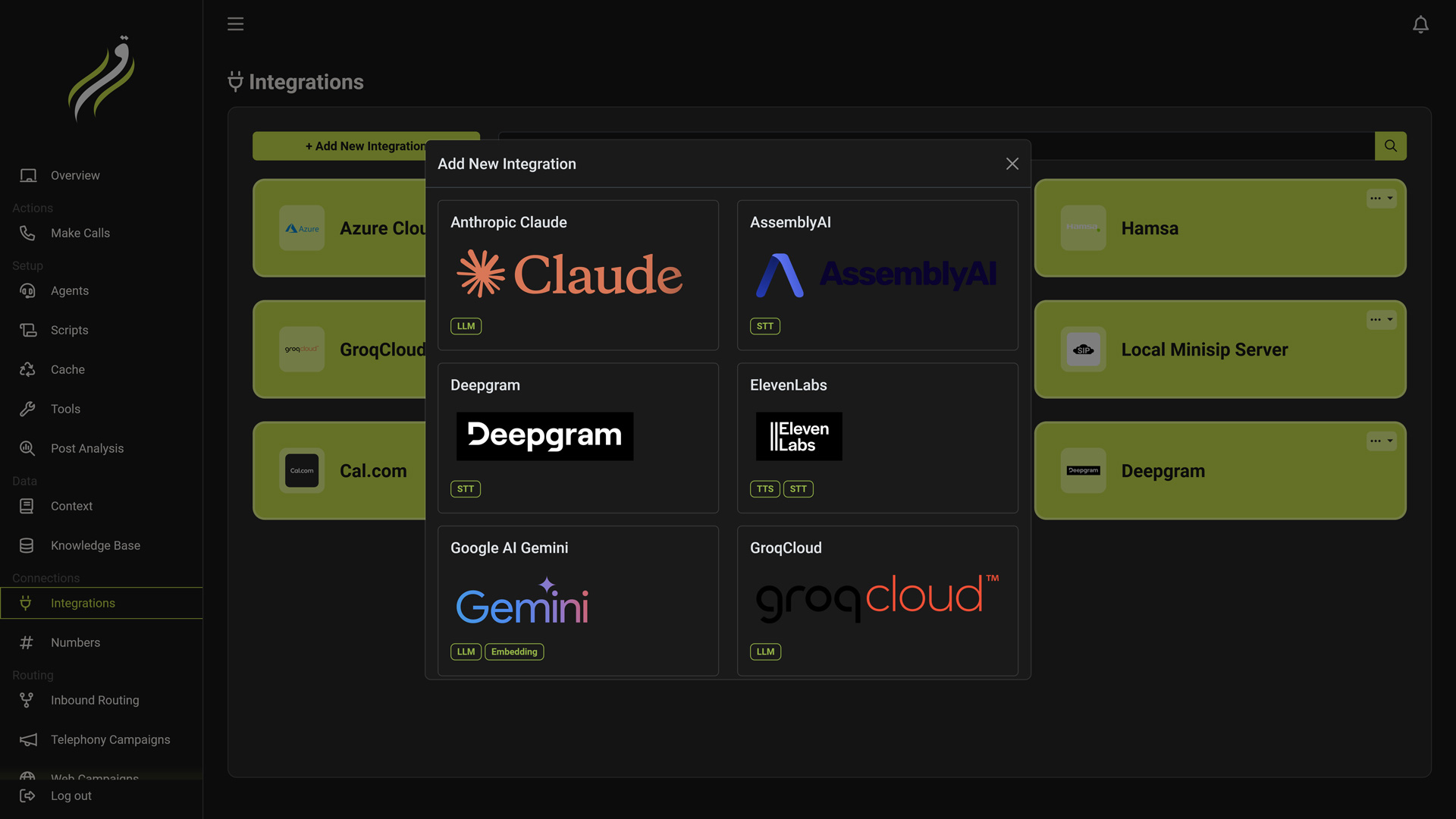 Before you can build an Agent or connect a Phone Number, you must provide the infrastructure. The **Integrations Tab** acts as your workspace's **Key Vault**.
You store your credentials here once, and reuse them across multiple agents, scripts, and campaigns.
Integration Categories [#integration-categories]
Iqra AI is vendor-agnostic. We support a wide range of providers across the entire stack.
} title="LLM (Intelligence)" href="/integrations/llm">
**The Brain.** Providers like **OpenAI**, **Azure**, **Anthropic**, and **Groq**.
} title="Voice (TTS & STT)" href="/integrations/voice">
**The Senses.** Speech-to-Text and Text-to-Speech providers like **ElevenLabs**, **Deepgram**, and **Azure Speech**.
} title="Telephony" href="/integrations/telephony">
**The Network.** Carriers like **Twilio**, **Telnyx**, and **SIP Trunks**.
} title="Knowledge (RAG)" href="/integrations/knowledge">
**The Memory.** Embedding and Reranking models (e.g., **Cohere**, **OpenAI Embeddings**) for vector search.
} title="FlowApps (Plugins)" href="/integrations/plugins">
**The Capabilities.** Authentication for external apps like **Cal.com**, **HubSpot**, or **Slack**.
***
Concept: Connection vs. Configuration [#concept-connection-vs-configuration]
It is important to understand the difference between adding an integration and using it.
| Concept | Location | Description |
| :---------------------- | :----------------------------------------- | :-------------------------------------------------------------------------------------------------------- |
| **Integration Account** | **Here (Integrations Tab)** | **The Credential.** You add your OpenAI API Key here. You give it a name (e.g., "My Prod Key"). |
| **Configuration** | **Agent Studio/Knowledge Base Studio/Etc** | **The Usage.** You select *which* model to use (e.g., GPT-4 vs GPT-3.5) and set parameters (Temperature). |
**Benefit:** You can add one OpenAI account, and use it to power 5 different Agents, each using a different model and temperature setting.
***
Adding an Integration [#adding-an-integration]
Navigate to **Business Dashboard** -> **Integrations**.
Select Provider [#select-provider]
Click **Add Integration**. You will see the library of supported services.
* *Tip:* Use the tags (e.g., `LLM`, `Embedding`) to filter the list.
Enter Credentials [#enter-credentials]
Enter the required secrets (API Key, Region, etc.).
* **Encrypted Storage:** Keys are encrypted at rest. Once saved, the full key is never displayed again in the UI.
Not sure where to find your API Key? Check our detailed connection guides in the **[Integrations Hub](/integrations/providers)**.
Naming & Scope [#naming--scope]
Give the integration a recognizable name (e.g., "Azure East US").
* **Workspace Scope:** This integration is available *only* to this specific Business. If you manage multiple clients, Client A cannot see Client B's keys.
Updating Credentials [#updating-credentials]
If you rotate your API keys on the provider side (e.g., generating a new Twilio Token), you must update them here immediately.
1. Click the **Edit** icon on the integration row.
2. Paste the new key.
3. Click **Update**.
Updates take effect instantly. However, any active Agents conversation will keep using the old integration for the lifetime of the conversation so if the old key is invalidated/expired, the conversation may fail. However, modules like phone number may stop working immediately as it depends on active integration if the key is invalidated/expired.
Before you can build an Agent or connect a Phone Number, you must provide the infrastructure. The **Integrations Tab** acts as your workspace's **Key Vault**.
You store your credentials here once, and reuse them across multiple agents, scripts, and campaigns.
Integration Categories [#integration-categories]
Iqra AI is vendor-agnostic. We support a wide range of providers across the entire stack.
} title="LLM (Intelligence)" href="/integrations/llm">
**The Brain.** Providers like **OpenAI**, **Azure**, **Anthropic**, and **Groq**.
} title="Voice (TTS & STT)" href="/integrations/voice">
**The Senses.** Speech-to-Text and Text-to-Speech providers like **ElevenLabs**, **Deepgram**, and **Azure Speech**.
} title="Telephony" href="/integrations/telephony">
**The Network.** Carriers like **Twilio**, **Telnyx**, and **SIP Trunks**.
} title="Knowledge (RAG)" href="/integrations/knowledge">
**The Memory.** Embedding and Reranking models (e.g., **Cohere**, **OpenAI Embeddings**) for vector search.
} title="FlowApps (Plugins)" href="/integrations/plugins">
**The Capabilities.** Authentication for external apps like **Cal.com**, **HubSpot**, or **Slack**.
***
Concept: Connection vs. Configuration [#concept-connection-vs-configuration]
It is important to understand the difference between adding an integration and using it.
| Concept | Location | Description |
| :---------------------- | :----------------------------------------- | :-------------------------------------------------------------------------------------------------------- |
| **Integration Account** | **Here (Integrations Tab)** | **The Credential.** You add your OpenAI API Key here. You give it a name (e.g., "My Prod Key"). |
| **Configuration** | **Agent Studio/Knowledge Base Studio/Etc** | **The Usage.** You select *which* model to use (e.g., GPT-4 vs GPT-3.5) and set parameters (Temperature). |
**Benefit:** You can add one OpenAI account, and use it to power 5 different Agents, each using a different model and temperature setting.
***
Adding an Integration [#adding-an-integration]
Navigate to **Business Dashboard** -> **Integrations**.
Select Provider [#select-provider]
Click **Add Integration**. You will see the library of supported services.
* *Tip:* Use the tags (e.g., `LLM`, `Embedding`) to filter the list.
Enter Credentials [#enter-credentials]
Enter the required secrets (API Key, Region, etc.).
* **Encrypted Storage:** Keys are encrypted at rest. Once saved, the full key is never displayed again in the UI.
Not sure where to find your API Key? Check our detailed connection guides in the **[Integrations Hub](/integrations/providers)**.
Naming & Scope [#naming--scope]
Give the integration a recognizable name (e.g., "Azure East US").
* **Workspace Scope:** This integration is available *only* to this specific Business. If you manage multiple clients, Client A cannot see Client B's keys.
Updating Credentials [#updating-credentials]
If you rotate your API keys on the provider side (e.g., generating a new Twilio Token), you must update them here immediately.
1. Click the **Edit** icon on the integration row.
2. Paste the new key.
3. Click **Update**.
Updates take effect instantly. However, any active Agents conversation will keep using the old integration for the lifetime of the conversation so if the old key is invalidated/expired, the conversation may fail. However, modules like phone number may stop working immediately as it depends on active integration if the key is invalidated/expired.